Template options are located in the Template tab and allow you to turn on or off some optional elements and customize the ones you've decided to display.
Image
Turn Show Image on or off to show or hide the customer profile picture on each testimonial.
Testimonials pulled from social networks usually have a profile picture associated with them, but if a certain testimonial does not have an associated picture - a default icon will be displayed instead.
Image Position
For most templates an additional "Image position" parameter is available which controls the position of the image within the template. "Above" and "Below" controls whether the image should be displayed on top or on the bottom of the template, respectively. Note though that the image will not necessarily be the top most or the bottom most element of the template - the exact position is driven by choices we've made during the design work of each variation.
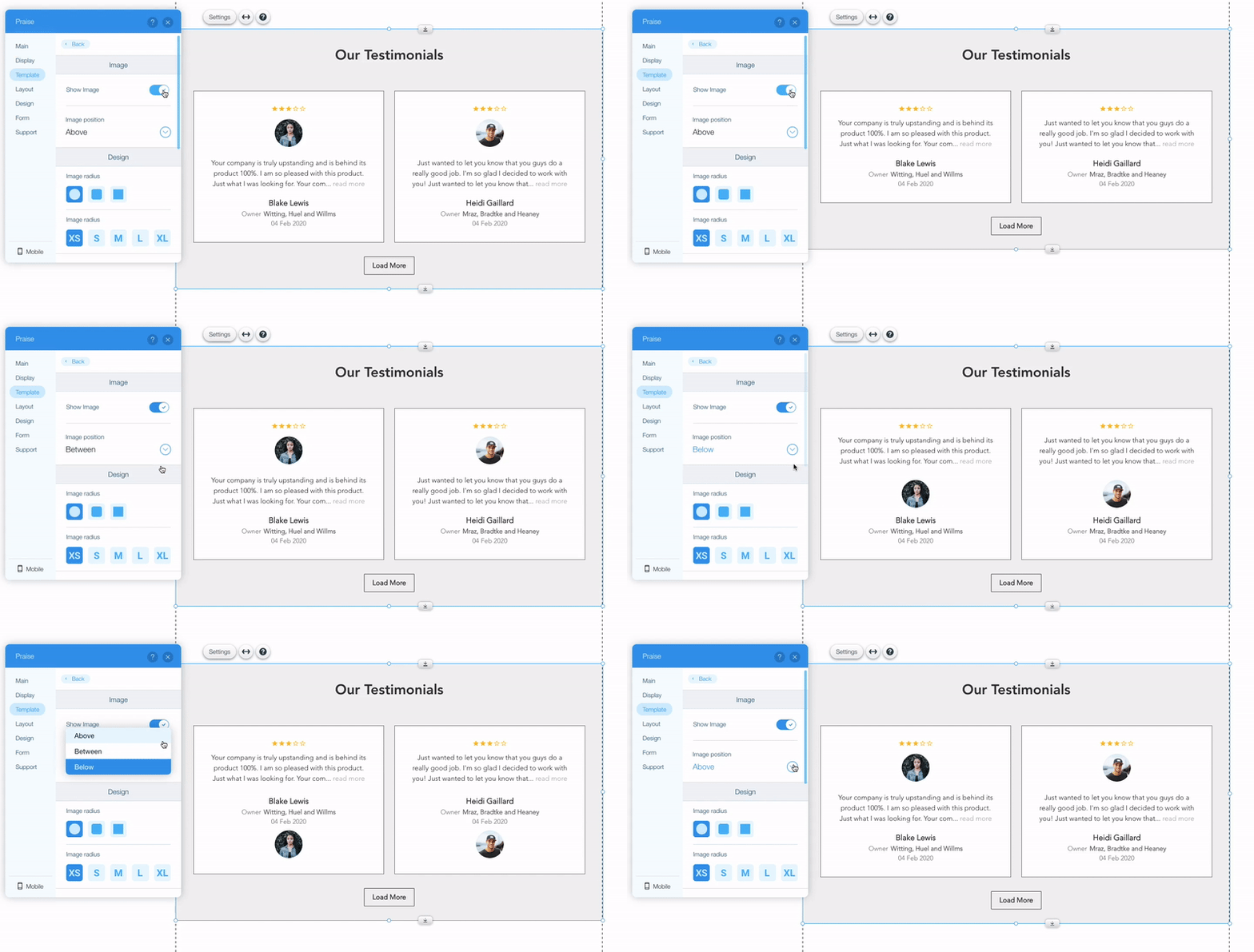
Image Design
Use Image radius options to choose whether the image border should be circle, square, or rounded (square border with rounded corners). Use Image size options - XS / S / M / L / XL - to determine the size of the image.
Rating
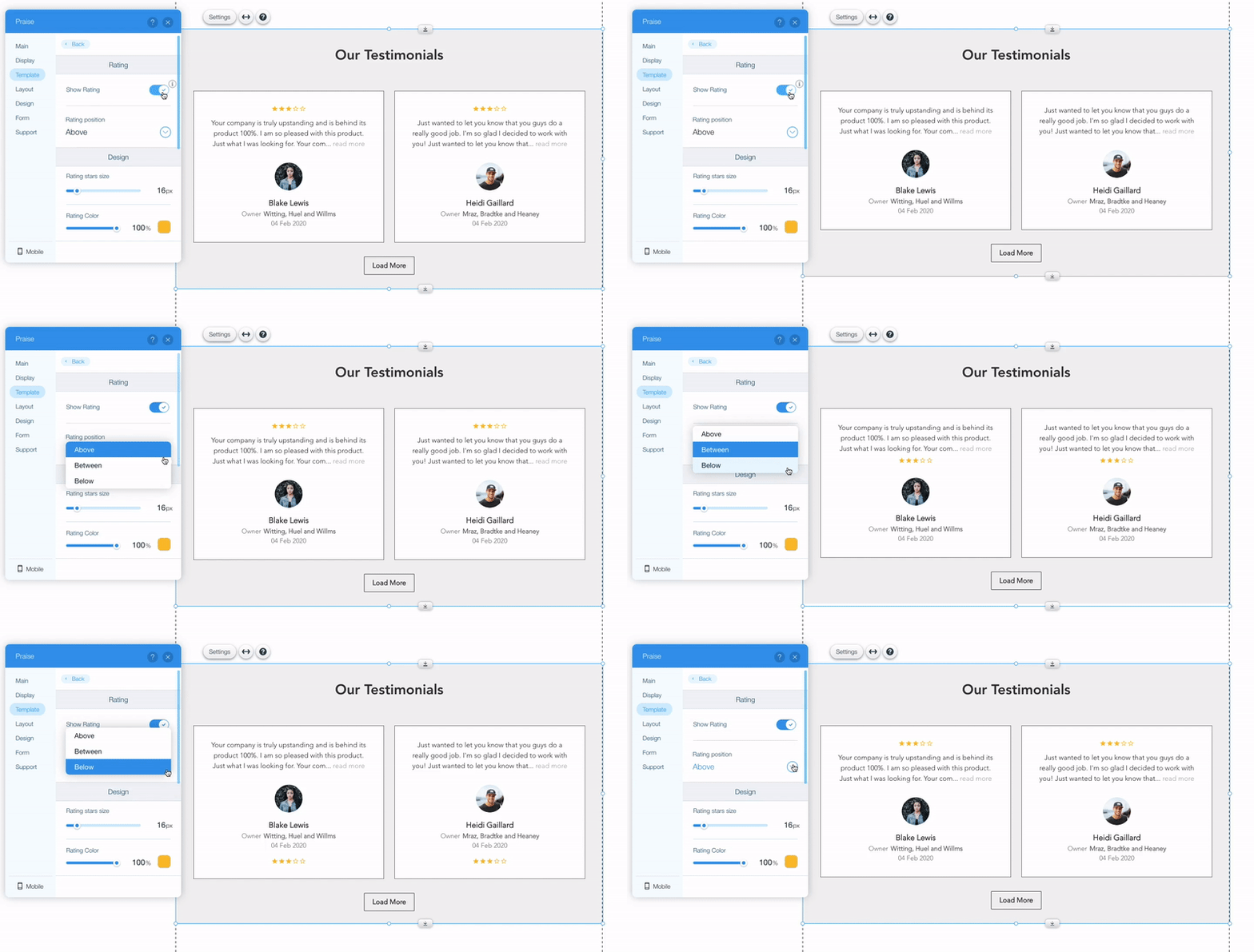
Turn Show Rating on or off to show or hide the star rating of each testimonial.
Even if turned on, star rating will only be displayed for testimonials that have rating associated with them.
Rating Position
Rating position parameter controls the position of the rating inside the template. The options for the rating position depend on the selected template.
Above and Below control whether the rating should be displayed on top or on the bottom of the template, respectively. As with image, this will not necessarily be the top most or the bottom most element of the template - the exact position is driven by choices we've made during the design work of each variation. Between (not available for some templates) means the rating will be displayed inside the template. The exact position is again determined by our design considerations.
Rating Design
Use Rating stars size and Rating color to control the size and the color of the stars, respectively.
Social icons
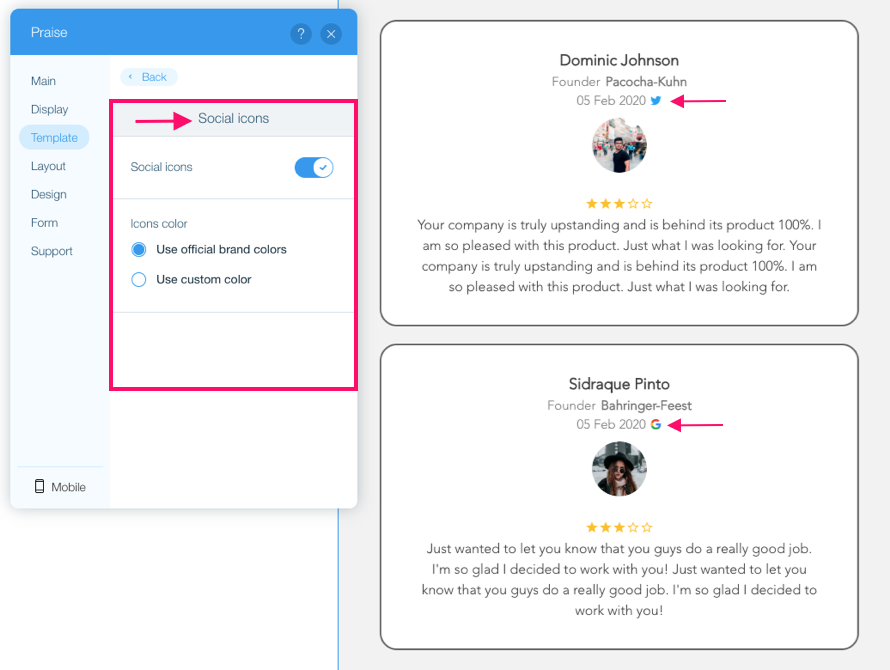
Turn Show Icons on or off to choose whether the icon indicating the source of the testimonial (for example - Facebook or Twitter) should be displayed.
There are 2 ways to display the social icons, which are determined by the Icons color parameter:
- Use brand official colors - the official brand colors will be used
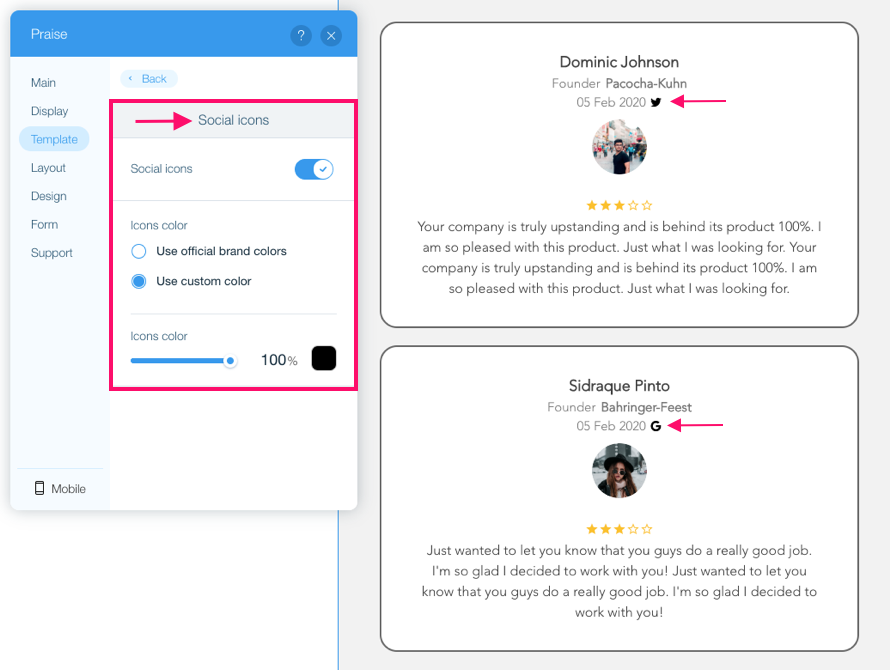
- Use custom color - set a custom color for the icons. When this option is selected use Icon color parameter to choose the specific color.
 |
 |
Comments
0 comments
Please sign in to leave a comment.